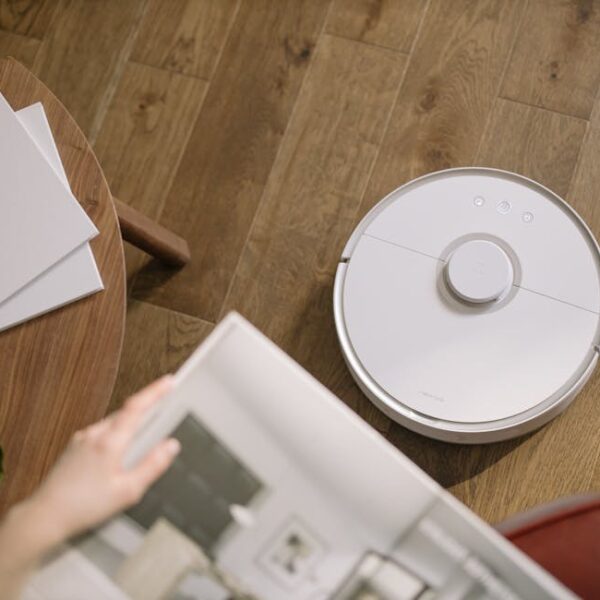
There comes a time in every tech aficionado’s life when they succumb to the irresistible allure of a smart home. And what better way to begin the journey than by integrating your Shark Robot vacuum cleaner with Alexa or Google Home? With this setup, you can control your cleaning device with just your voice- transforming you from ordinary mortal to couch wizard at the sweep of a voice command. Let’s plunge into this exciting world and figure out how you can get your Shark Robot to respond to your vocal beck and call.
Understanding Shark Robot Compatibility
Before you start imagining yourself directing your Shark Robot with a flick of your wrist and a simple command, keep in mind that not all Shark Robot models are compatible with smart home assistants. However, the beauty lies in the fact that most of the popular models like Shark Ion Robot 750, Sharks IQ Robot, and Shark Ion Robot 720 can easily pair with both Amazon Alexa and Google Home. It’s important to check the compatibility of your model first- because, let’s face it, talking to a vacuum cleaner that doesn’t respond is more frustrating than magical.
Configuring Amazon Alexa to use with Shark Robot
Once you have established that your Shark Robot vacuum and your Amazon Alexa are destined to collaborate, the process of setting them up is straightforward. Begin by downloading and setting up the Alexa app and the SharkClean App, both available for Android and iOS. With these apps in place, head over to the Alexa’s Skill Store, a wondrous place filled with skills that can be imbued into your Alexa device. Here, enable the Shark Skill.
Step-by-step guide:
- Download and install the Amazon Alexa app and the SharkClean App on your smartphone.
- Launch the Amazon Alexa App and head over to the Skills Store.
- Search for ‘Shark’ and enable the Shark Skill. This is basically Amazon’s wizarding trick that makes your Shark Robot listen to you.
You are not just done yet! After enabling the Shark Skill, you will have to link your SharkClean Account with your Alexa. But worry not, the process is simple.
Pro Tips:
Once you’ve set up the basics, you don’t have to limit yourself to the default commands. For a more personal touch, you can create custom voice commands to bring your Shark Robot vacuum to life, transforming your cleaning sessions into forms of personal expression.
Configuring Google Home to use with Shark Robot
The universe of Google Home and Shark Robot stand united in their mission to simplify your life. Setting them up together along the same line as with Alexa, you start by downloading and setting up the Google Home and Shark Robot apps on your smartphone. Keep in mind, however, that Google Home refers to these skills as actions. To connect your vacuum to Google Home, you need to enable the Shark action.
Step-by-step guide:
- Download and install the Google Home app and the SharkClean App on your phone.
- Open the Google Home App and tap on the + sign to add a new device.
- In the ‘Works with Google’ section, search for ‘Shark’ and link the Shark action to your Google Home.
Don’t forget to link your SharkClean account to your Google Home for a smoothly operating system.
Best Practices:
For those avid cleaners who don’t want to miss a cleaning session, it might be a good idea to set up a cleaning schedule. This way, your Shark Robot will do its magic even when you are not home. Simply use voice commands like Hey Google, tell Shark to clean on schedule.
Troubleshooting Common Issues with Connecting Shark Robot to Alexa/Google Home
Like many software-system relationships, issues do crop up. But knowing how to address them can save you a ton of frustration. Important to note is to ensure your apps and devices are always updated to the latest version. This alone can solve a series of potential issues.
Common Problems and Solutions:
- Shark Robot is unresponsive: Ensure that your vacuum cleaner and your smart assistant are on the same Wi-Fi network.
- SharkClean App is not linking: Try logging out and back in, or reinstalling the app.
- Shark Robot does not obey commands: Make sure the command is clear and loud, and without background noise.
- Device updates aren’t downloading: Check your internet connection and ensure your device has sufficient storage.
Pro Tips:
- Always place your Shark Robot on its charger when not in use. This ensures it’s always ready for the next cleaning dance-off.
- Make sure to keep the microphone of your smart assistant clear of coverings or background noise.
Leveraging Shark Robot’s Capabilities through Alexa and Google Home
As with many technologies, the real fun begins when you understand and leverage the underlying capabilities. With the Shark Robot, you can command your robo-cleaner to start or pause cleaning, return to its dock, or schedule a cleaning session. Here are some of the commands you could use:
Advanced Functions:
- Alexa/Google, ask Shark to start cleaning.
- Alexa/Google, ask Shark to pause cleaning.
- Alexa/Google, ask Shark to return home.
- Alexa/Google, tell Shark to clean on schedule.
List of Voice Commands:
| Alexa | Google Home |
|---|---|
| Alexa, ask Shark to start cleaning. | Hey Google, tell Shark to start cleaning. |
| Alexa, ask Shark to pause cleaning. | Hey Google, tell Shark to pause cleaning. |
| Alexa, ask Shark to return home. | Hey Google, tell Shark to go home. |
| Alexa, tell Shark to clean on schedule. | Hey Google, tell Shark to clean on schedule. |
Now with your magical voice, you can have your Shark Robot twisting and twirling across the floor while you enjoy a clutter-free home. Remember, the magic lies in integration. Happy cleaning!
Key Takeaway:
- Not all Shark Robot models are compatible with smart home assistants but most popular models like Shark Ion Robot 750, Sharks IQ Robot, and Shark Ion Robot 720 can easily pair with both Amazon Alexa and Google Home.
- Downloading and setting up the Alexa app and the SharkClean App or the Google Home app and the SharkClean App allows for Shark Robot to be connected with these smart home assistants.
- By enabling Shark Skill on Alexa or Shark Action on Google Home, users can control their Shark Robot simply through voice commands.
- Regular updates of the apps and devices are crucial to prevent connectivity issues.
- Special functions, such as setting up cleaning schedules or custom commands, enhance the user experience and increase the functionality of the Shark Robot.
You have taken one more step towards making your home smarter and life easier. Keep exploring the capabilities of your Shark Robot and discovering how to personalize its functionality with Alexa and Google Home. Stay ahead of the curve and let technology elevate the level of comfort and convenience in your home.
FAQs
Q: Can I use both Alexa and Google Home to control my Shark Robot?
A: Absolutely! As long as your Shark Robot is compatible, you can switch between Alexa and Google Home as per your preference.
Q: Can I control multiple Shark Robots with my Alexa or Google Home?
A: Yes, you can, provided each Shark Robot is compatible and has been set up properly using the respective apps.
Q: I can’t find Shark Skill or Shark Action on my Alexa or Google Home app. What do I do?
A: Make sure both your applications are updated to the latest version. If the problem persists, please reach out to the app customer support.
Q: Can I schedule cleaning sessions at particular times of the day?
A: Absolutely, scheduling cleaning sessions at specific times is one of the advanced features you can set up using voice commands.
Q: What if my Shark Robot won’t respond to commands issued through Alexa or Google Home?
A: First, ensure that both your vacuum cleaner and your smart assistant are on the same Wi-Fi network and the microphone of your smart assistant is clear. If issues persist, try troubleshooting through the SharkClean app or reach out to customer support.
Remember, exploring further widens the potentials of your devices. Feel free to check out more on our website and don’t hesitate to share this article with other tech enthusiasts. Happy cleaning!