
Connecting your Shark Robot to Wi-Fi, regardless of whether you’re using an Android or iOS device, leads to a more convenient, adaptable, and efficient cleaning experience. Leveraging the benefits of Wi-Fi connectivity, such as control over scheduling, remote navigation, and tracking the robot’s cleaning performance, can considerably enhance the convenience and effectiveness of your home cleaning.
Understanding the Features of Shark Robot
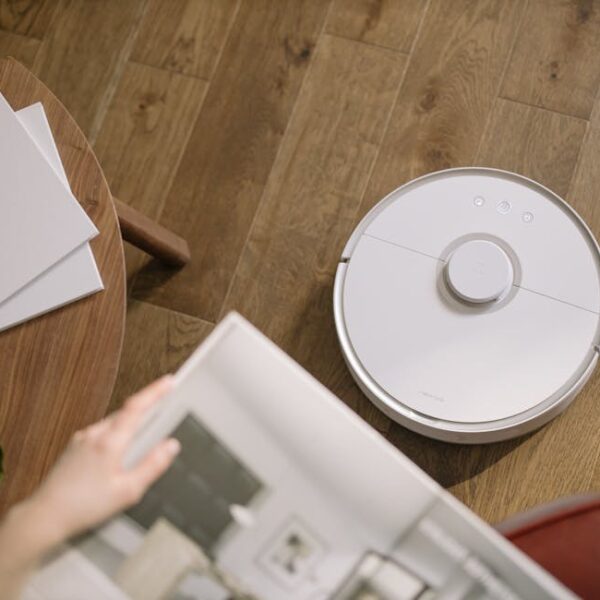
The Shark Robot, an innovative and intuitive robotic vacuum cleaner, allows homeowners to benefit from an automated cleaning experience. One key element of its functionality is Wi-Fi connectivity, which can enable several impressive features:
- Scheduling: You can set your Shark Robot’s cleaning schedule, delegating routine cleaning tasks to the robot.
- Remote Control: Handle the Shark Robot’s direction and movements from your smartphone, making spot cleaning effortlessly manageable.
- Performance Tracking: Monitor your Shark Robot’s cleaning performance and effectiveness directly from your device.
Pro Tip: Regular firmware updates of your Shark Robot via Wi-Fi can significantly improve its performance, ensuring that it remains in top-gear operation.
Steps to Connect Your Shark Robot to Wi-Fi for Android Devices
Connecting your Shark Robot to Wi-Fi through your Android device is simple, requiring only a few steps:
- Download the SharkClean App from the Google Play Store.
- Ensure your Wi-Fi network is up and running.
- Prepare your Shark Robot for connection:
– Plug your Shark Robot into an outlet.
– Hold down its ‘Dock’ and ‘Clean’ buttons simultaneously for about five seconds, until it beeps and its Wi-Fi light starts flashing.
✅Checklist:
- Shark Robot vacuum
- Android device
- Operational Wi-Fi network
Best practice: Before initiating the connection, disconnect from VPNs or other devices to prevent any network interference that might interrupt the connection process.
Steps to Connect Your Shark Robot to Wi-Fi for iOS Devices
Just like Android devices, establishing a Wi-Fi connection between an iOS device and the Shark Robot is also hassle-free. Follow these simple steps to get started:
- Download the SharkClean App from the App Store.
- Make sure your Wi-Fi network is operational.
- Set your Shark Robot into connection mode by adhering to the same instructions outlined in the Android section.
Pro Tip: Your iOS device will run the pairing process more smoothly when it’s updated to the latest iOS version.
Here’s a comparison table outlining the steps for Android and iOS:
| Steps | Android | iOS |
|---|---|---|
| Download SharkClean App | Google Play Store | App Store |
| Check Wi-Fi connectivity | Yes | Yes |
| Prepare Shark Robot | Yes | Yes |
You can notice that the steps are identical for both Android and iOS devices, with primary differences being in the mobile operating systems’ app marketplaces.
Troubleshooting Common Wireless Connectivity Issues on Android and iOS
Experiencing difficulties when connecting your Shark Robot to Wi-Fi? We’ve got you covered.
Firstly, make sure:
- Your Wi-Fi network is operational and the signal is strong.
- Your device (Android or iOS) is connected to the Wi-Fi network.
- You’ve entered the correct Wi-Fi password.
If you’re still having trouble, you may want to restart your router and your Shark Robot before attempting to connect again.
✅Troubleshooting Checklist:
- Check Wi-Fi network’s function
- Check device’s Wi-Fi connection
- Verify Wi-Fi password
Best practice: Consider performing a factory reset on your Shark Robot if you’re unable to resolve the connectivity issues. However, it’s necessary to consider this only as a last resort, since it will erase all your Shark Robot’s data and settings.
Maintaining Optimal Wi-Fi Connection for Your Shark Robot
For optimal use of your Shark Robot’s features, maintaining a steady Wi-Fi connection is vital. Here are some tips to ensure a robust Wi-Fi connection and regular maintenance of your device:
- Keep your Wi-Fi router in a central location to optimize its range and signal strength.
- Regularly update the firmware of both your Shark Robot and your smartphone.
- Keep other high-bandwidth devices off the network when the Shark Robot is in use to avoid congestion.
- Regularly maintain your Shark Robot by cleaning its brushes and replacing its filter as recommended.
When connecting your Shark Robot to Wi-Fi, you typically have two options: 2.4 GHz or 5 GHz Wi-Fi bands. Here are the pros and cons:
| 2.4 GHz | 5 GHz | |
|---|---|---|
| Pros | Wider coverage | Faster data rates over shorter distances |
| Cons | Slower data rates over longer distances | Lesser coverage |
Pro Tip: Ensuring that your Shark Robot’s software is updated can facilitate a stronger, smoother, and more efficient connection. Ultimately this will help you enjoy an optimized performance and longevity from your device.
To sum up, connecting your Shark Robot to Wi-Fi can amplify the convenience and efficiency of your home cleaning. Make these instructions your go-to guide, ensuring that utilizing your smart cleaning aide is a breeze.
Key Takeaway:
- The Wi-Fi connectivity of Shark Robot enhances the cleaning experience by allowing users to set schedules, navigate the robot remotely, and keep track of its cleaning performance.
- Connecting the Shark Robot to Wi-Fi using both Android and iOS devices is a straightforward process that involves installing the SharkClean app, getting your Wi-Fi in working order, and preparing the Shark Robot for connection.
- Ensuring a stable Wi-Fi connection, keeping the software updated, and routine maintenance of the Shark Robot can significantly improve its performance and longevity.
- When connecting to Wi-Fi, users can choose either the 2.4 GHz or the 5 GHz band with each band having its pros and cons.
- Common Wi-Fi connectivity issues can be resolved by ensuring the device is connected to the Wi-Fi network, the network is operational, and the password is correct. A factory reset can serve as a last resort in troubleshooting.
While the process might seem a bit daunting initially, connecting your Shark Robot to Wi-Fi is reasonably simple and it unlocks a wealth of additional features that can drastically ease your home-cleaning chores. Remember, a well-connected Shark Robot means a cleaner home with less hassle.
FAQs
Q: Can I set different cleaning schedules for weekdays and weekends on the Shark Robot?
A: Yes, you can set different cleaning schedules for weekdays and weekends through the SharkClean app, once your Shark Robot is connected to Wi-Fi.
Q: Do I have to disconnect other devices from Wi-Fi when connecting the Shark Robot?
A: While it’s not necessary to disconnect other devices, you should try to keep other high-bandwidth devices off the network when connecting the Shark Robot to avoid interference and network congestion.
Q: How frequently should I update the firmware of my Shark Robot?
A: Regular updates are beneficial, but there’s no specific frequency. When an update is available, you’ll be notified through the SharkClean app.
Q: Can I connect two Shark Robots to the same device?
A: Yes, you can connect multiple Shark Robots to the same device through the SharkClean app. Each robot will have its separate settings and schedules.
Q: I’ve lost my Wi-Fi password. Can I still connect my Shark Robot to Wi-Fi?
A: If you can’t recall your Wi-Fi password, you may need to reset it using your router’s user guide or contact your internet service provider. The correct Wi-Fi password is necessary for the connection.
Don’t forget to share this article and browse through our other posts for more useful tips and tricks!