Cleaning your computer is an essential part of its maintenance. But while you might be tempted to whip out your handy vacuum cleaner to sweep away the dust particles, you may want to think twice. The short answer to whether vacuuming your PC’s interior is safe is: Not entirely. Using a traditional vacuum cleaner inside your computer’s case poses risks, including the potential for static electricity which can seriously damage its internal parts.
Understanding the Dangers of Using a Vacuum Cleaner on Your Computer
Tidying up your computer isn’t as simple as vacuuming your living room carpet. Regular vacuum cleaners generate static electricity as air passes through the hose. Though you may not see or feel it, this static energy can zap your computer’s components, causing irreversible damage.
Here’s a quick checklist of good practices to avoid static electricity:
- Opt for using specifically designed computer vacuums or ESD-safe vacuums.
- Ground yourself before touching any internal parts of your computer.
- If you must use a regular vacuum, keep the nozzle a distance away from the components and never let it touch them.
- It’s safer to vacuum around the exterior vents of your PC to prevent dust from entering the machine.
Alternatives to Vacuum Cleaning Your Computer
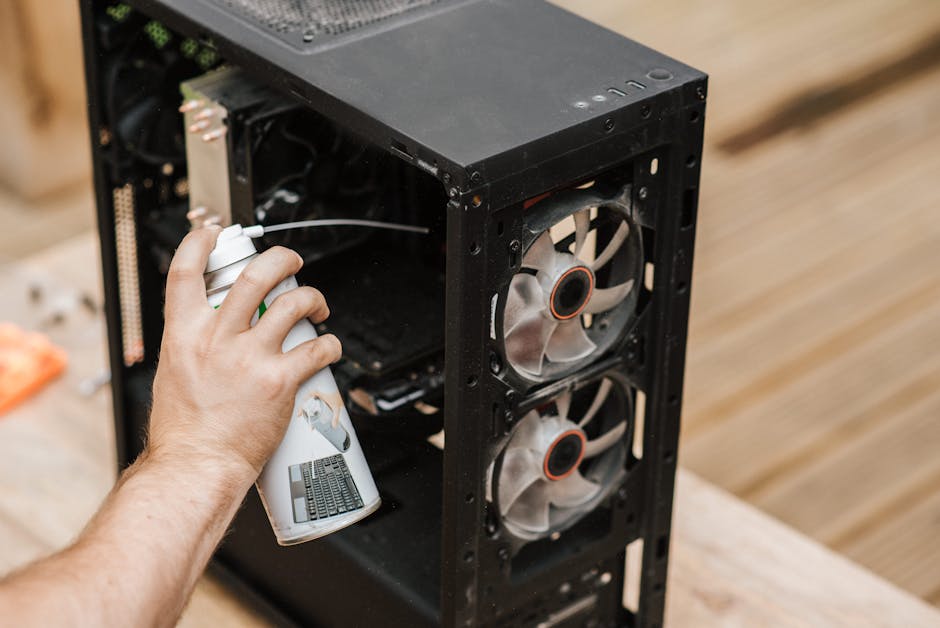
Fortunately, safer ways to clean your computer exist. Compressed air cans, for instance, are great tools for cleaning without the risk of electrostatic discharge. When used properly, they can blow dust off the components without touching them physically.
Meanwhile, anti-static wipes and sprays act as dust detergents for your hardware. These products help maintain the cleanliness of your gadgets without causing static electricity complications.
Consider these guidelines when using alternative cleaning tools:
- Always power off and unplug your computer before cleaning.
- Use short bursts when using compressed air cans to avoid damaging sensitive parts with an intense gust of air.
- Make sure to spray at a proper angle to prevent any liquid propellant from coming out with the air.
Proper Procedure for Cleaning the Inside of a Computer
Cleaning computer components isn’t a job to rush. It demands meticulousness from disassembly to reassembly:
- Power off and unplug your computer.
- Open the case to reveal the interior.
- Use a can of compressed air to clean the components and parts, especially the dust-laden fans.
- Ensure you handle each piece with care to prevent damage.
- Once done cleaning, reassemble your computer, step by step.
Never force any part in or out as this could lead to breakage. Always refer to your computer’s manual for proper disassembly and reassembly procedures.
Evaluating When a Professional Cleaning Might be Necessary
Certain situations might warrant professional help for computer cleaning. Deep-seated dust that won’t budge or computers that overheat despite regular cleaning might require a professional touch.
Here’s a comparison of DIY vs. professional computer cleaning services:
| Aspect | DIY Cleaning | Professional Service |
|---|---|---|
| Cost | Usually inexpensive, only cost of cleaning tools. | Generally costlier, but it ensures professional-grade cleaning. |
| Time | Might take longer as you’ll be doing it yourself. | Could be quicker as professionals are trained to clean efficiently. |
| Risk | Risks of damage due to improper handling or static electricity. | Reduced risk, as professionals know how to avoid potential dangers. |
When selecting a professional service, look for experiences, certifications, and read customer reviews to ensure the quality of service provided.
Long-term Care and Maintenance Guidelines to Keep Your Computer Dust-Free
Prevention is better – and easier – than cure. Here are some best practices for taking care of your computer in the long run:
- Establish a regular cleaning schedule. A monthly light clean with a more thorough check every six months is often a good start.
- Keep your computer in a dust-free, dry area to reduce the potential for dust buildup.
- Use dust covers when the computer is not in use, especially for prolonged periods.
- Invest in quality air filters if you live in a dust-prone area.
By following these guidelines and maintaining an active approach to caring for your computer, you can extend its lifespan and ensure it performs well for many years to come.
Key Takeaway:
- Using a traditional vacuum cleaner inside a computer can generate static electricity, which can cause irreversible damage to internal components.
- Alternatives to vacuum cleaning, like compressed air cans and anti-static wipes and sprays, are safer options for cleaning your computer.
- Proper procedure for cleaning a computer involves careful disassembly, gentle cleaning of parts, especially the fans, and thoughtful reassembly.
- In certain situations, such as stubborn dust accumulation or frequent overheating, professional cleaning services may be necessary.
- Long-term computer maintenance and dust prevention involve regular cleaning, keeping the computer in a dust-free area, using dust covers, and investing in quality air filters.
While cleaning a computer may seem a daunting task, with the right understanding and tools, you can ensure your computer is clean and maintains its performance for years to come. Your device’s longevity largely depends on practicing regular maintenance and making use of safer alternatives to traditional vacuum cleaning. On the bright side, if the job seems too complex, professional help is always at your disposal.
FAQs
Q: Can I use a hairdryer to blow dust out of my computer?
A: Using a hairdryer is not recommended as it could generate static electricity or may blow hot air which could potentially harm your computer components.
Q: Can I use regular wipes to clean my computer?
A: Regular wipes can potentially cause static electricity. Instead, opt for anti-static wipes designed for electronic devices, as these are safer for your computer.
Q: How often should I clean my computer’s internals?
A: It depends on your usage and the environment you place your computer in. However, a good rule of thumb is to carry out a light clean monthly and a more thorough check every six months.
Q: My computer constantly overheats despite regular cleaning, what should I do?
A: In this case, it would be best to consult a professional. The issue could be more than just dust—there may be an issue with the computer’s cooling system that needs professional attention.
Q: Are certain parts of the computer more prone to dust accumulation than others?
A: Yes, fans and heat sinks tend to accumulate dust more quickly due to their constant motion and design. These parts should be given special attention during cleaning.
We hope you found this article helpful. Feel free to share and check out other posts on our site for more information on all things tech.